|
BACK

BASIC STEPS FOR FILE TRANSFER
"PC USERS"
Customer:
Send test file to BCT
Postcript Printer driver installed
Create Art using CMYK Palette to assign colors
Print to File
Send file to BCT
PREPARING THE TEST FILE
1) Make sure the printer you are using is a postscript printer. If not do not proceed with the test. Go to installing the print driver directions on page 3 and install the recommended print driver.
2) Create a 4 CMYK Spot Color postscript file using your current typesetting package by following the basic directions below. Keep in mind each program may differ slightly.
a) Create a 3.5 wide x 2.0 inch deep page layout. Set all 4 margins at 1/4 inch.
b) Draw a box in each corner of the layout.
c) Insert a line of text in the center of the layout. Use a script font if available.
d) Assign to each drawn box one of the 4 CMYK Spot Colors from the color palette. If your color palette does not contain CMYK Spot Colors refer to the user manual to create the colors in the palette.
e) Assign the color black (K) to the text.
f) In the Print Menu choose Print To File or Write Postscript To File.
1) Select Normal or PS as the file extension. Do not choose EPS.
g) Choose Printer’s marks and/or Crop Marks
h) Include Download Fonts for both Postscript and True Type.
I) DO NOT SELECT COLOR SEPARATIONS. Leave selection at Composite.
j) Select Portait as the orientation in the Print Menu.
k) Name the file with no more then 7 characters.
3) Transmit the file to BCT making sure to identify the desired ink colors in the transmission file. For example, if CYAN was chosen to represent reflex blue indicate C = Reflex blue; M = Green etc.
STEP BY STEP CUSTOMER DIRECTIONS
CUSTOMER FUNCTIONS
1) Install The Printer (One Time)
PRINT DRIVERS:
If you are not using a postscript printer or the test file transmitted to BCT was unsuccessful load the following print driver.
The recommended print drivers to be used for creating postscript files for transfer and quality color separation has been identified as the QMS Colorscript 100 Model 10 for the PC. The proper driver must be loaded for the Print To File function. This function takes the document and prints it to a postscript file which is transmitted to the BCT plant for color separation.
QMS Colorscript 100 Model 10 Printer Driver:
The QMS Colorscript 100 Model 10 Printer Driver has been chosen as the common driver for creating a postscript file on PC Computers. Each customer creating artwork on a PC must load the driver on their system and print the artwork to a file using the QMS as the chosen printer.
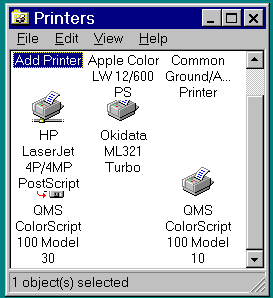
To load the driver on a Windows 95 machine place the Windows 95 CD in the drive. Click on START, SETTINGS, PRINTERS. The Printers Menu will open listing all available printers as well as the
ADD PRINTER button.
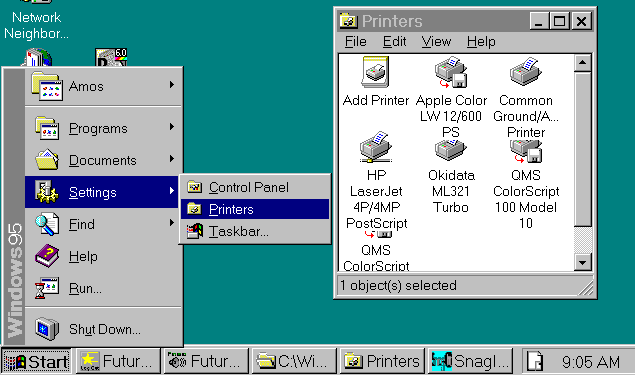
Double click on the ADD PRINTER button to open the ADD PRINTER WIZARD.
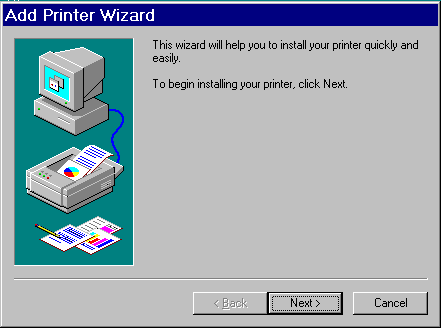
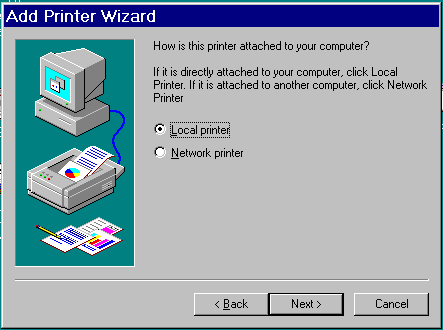
Click on NEXT to begin adding the QMS printer driver. The following screen will open. Local Printer will be checked. Accept this default by clicking on NEXT.
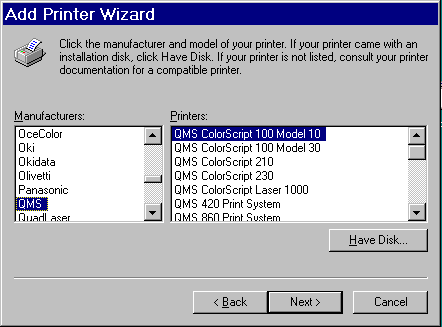
The choice lists menu will open. Scroll through the Manufacturers List and click on QMS. Scroll through the Printer list and click on the QMS Colorscript 100 Model 10 so it is highlighted. Click on NEXT.
Choose FILE in the Available Port Menu port by clicking on it so it is highlighted and click on NEXT.
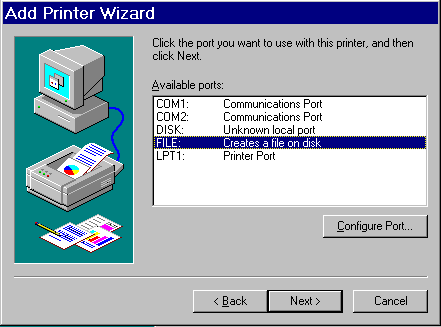
Accept the default name for the QMS Colorscript 100 Model 10 and answer NO to default printer as shown below. Click on NEXT.
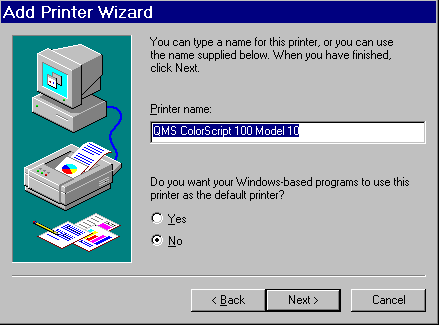
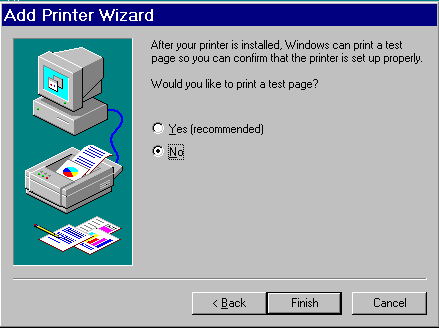
Click on NO to print a test page when completed. Click on FINISH.
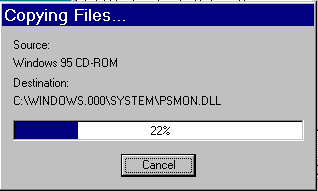
You will be prompted to insert the Windows 95 CD in the drive and click on OK to continue.
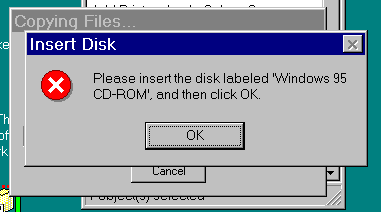
The files for the QMS will be copied to the PC. When completed the Printers menu will show the QMS Colorscript 100 Model 10 as an installed printer.
CUSTOMER FUNCTIONS
2) Printing The Document
Preparing The Document For Print To File:
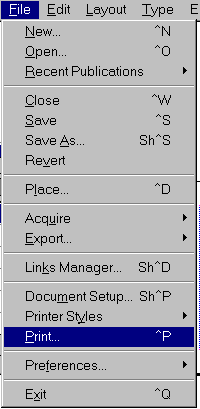
Instructions for some commonly used graphic programs will be provided. There are many other programs available and the user should be able to follow the basic instructions to accomplish the Print To File feature. This option is usually found in the File Menu, Print option of most programs.
The following instructions explain in detail which defaults to choose to create postscript files for transmission to BCT.
Example A) PC - PageMaker 6.5
Click on the FILE Menu and click on NEW. The Document Setup menu will open. Choose the desired page size. For business cards first select Custom and then add the dimensions of 3.5 x 2.0 Wide. The Margins would be entered at .25 for a quarter inch margin business card or .125 for an 1/8 inch margin card. Click on the down arrow next to Compose To Printer and choose the QMS Colorscript 100 Model 10 printer. Your screen should look like the graphic below.
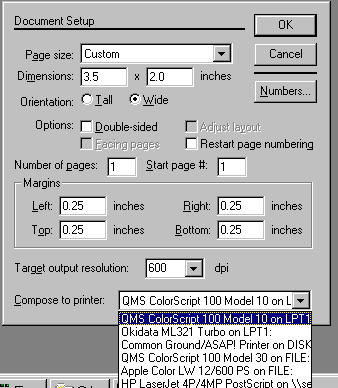
Click on OK to accept the defaults and the document will open showing a 1/4" margin business card. Create a Color Palette containing the 4 spot colors to be used in the order. The colors are Cyan, Magenta, Yellow, and Black.
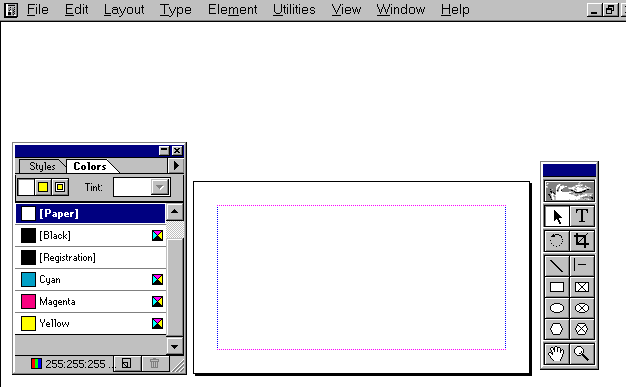
The colors are assigned by the user according to the BCT Color Conversion Chart shown below.
Color Imprint Use This CMYK Spot Color
Black or Gray Black
Process Blue , Green, Reflex Blue, or Teal Cyan
Red, Brown, or Burgundy Magenta
Gold, Silver, or Orange Yellow
Note: If you have conflicting colors such as Reflex Blue and Green then name the primary color according to the color conversion chart and name the secondary color any other color. Instruct your clients to identify each color they have chosen with the ink color and the code chosen.
The defaults for the Print To File are as follows:
 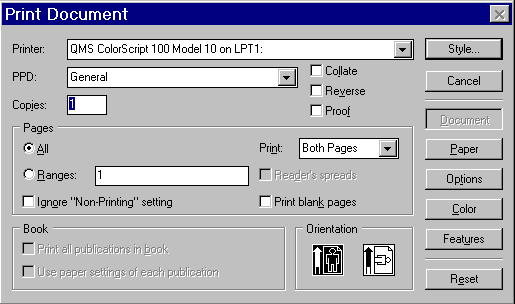
The main print screen opens showing the QMS Colorscript 100 Model 10 Printer as the printer with a General ppd. This was originally defined as a default in the Document Setup, Compose To Printer option. Notice the Portrait button is selected. Click on the Paper button on the right of the menu.
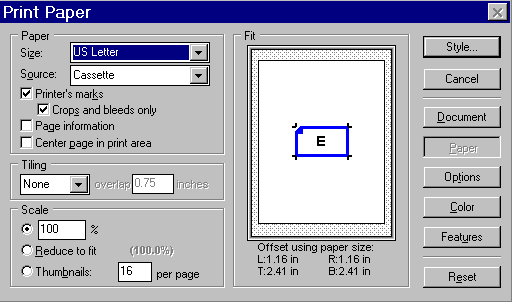
Your screen should look like the one above. Make sure Printer’s Marks and Crop and Bleeds Only are selected. Click on the Options button. The screen shown below will open.
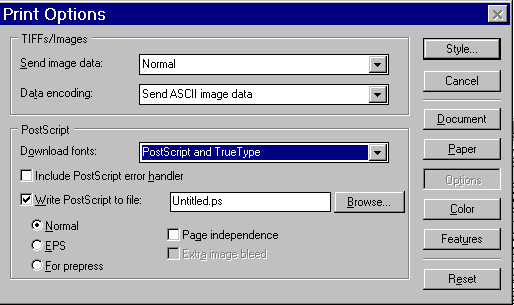
The Options button screen has the following defaults assigned to it. Send images/image Data is Normal; Data Encoding is Send ASCII images/image Data; Download Fonts is Postscript & True Type; Write To Postscript File is Checked; as well as
Normal for the type of file. Click on the Browse button to select a place and file name for the postscript file that will be transmitted to the BCT plant.
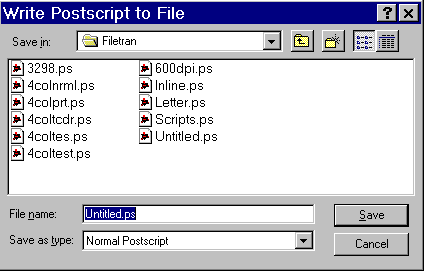
After naming the file, click on SAVE. You will return to the previous menu. Click on the COLOR button. The following screen will open.
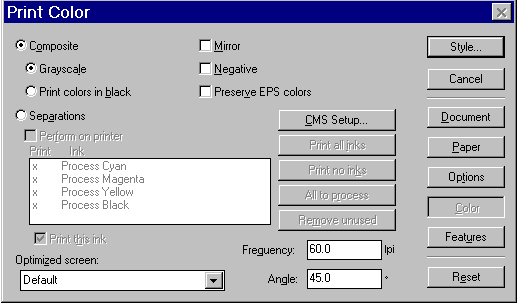
Notice Composite and Grayscale are selected. Do not click on Separations. Click on SAVE to save the file.
The user transmits the postscript file to the BCT plant.
Example B) CorelDRAW 7.0
Included below are the basics steps for creating a postscript file in CorelDRAW 7.0 for transfer to BCT.
Step 1:
Load the QMS Colorscript 100 Model 10 printer on the PC.
Note: Step 1 only needs to be completed one time
Step 2:
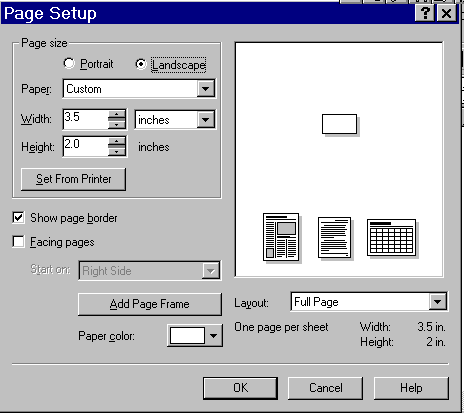
Click on Layout, Page Setup. Choose the desired page size. For business cards select Custom from the Paper option. Select Landscape, Width 3.5, Depth 2.0. Click on OK. Your screen should look like the one shown below.
 . .
The layout will open showing a screen similiar to the one on the following page.
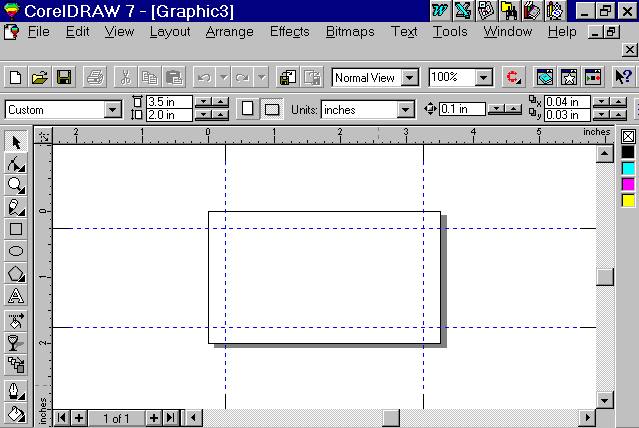
Notice there are only 4 color choices in the color
palette. This is a CMYK color palette. Each color is
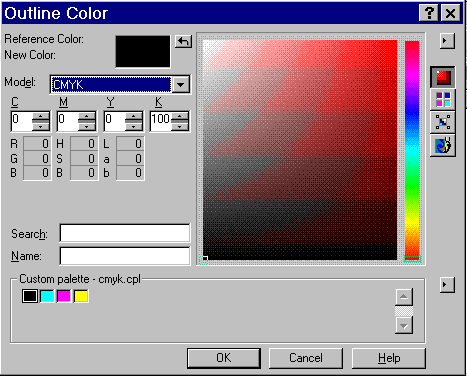
is set with a 100% tint. When creating your document only use these four colors for your color separations. When assigning color to imported graphics use the Pen Nib tool, Color Palette Wheel and choose CMYK 100% tint colors. If your color pallette does not contain the CMYK 100% tint colors refer to the user manual to create a color pallette.
Step 3:
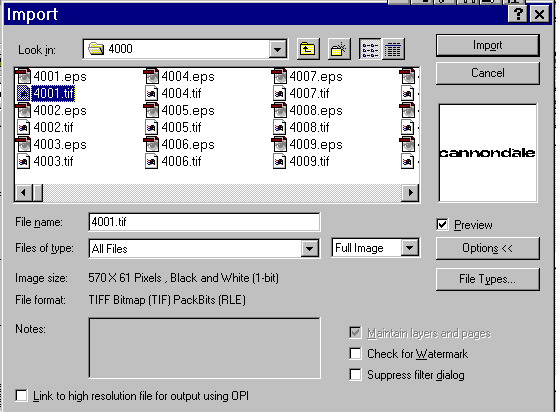
Typeset the document and assign proper color separations. If importing any graphics into the document be sure to use only TIF file graphics. EPS graphics do not hold the colors and may not separate properly.
Step 4:
Proof the document to insure spelling and color separations are correct. BCT cannot edit your transmitted postscript file should any errors be detected after transmission.
Step 5:
Print the document to a Postscript File. Click on the File menu click on the Print option.
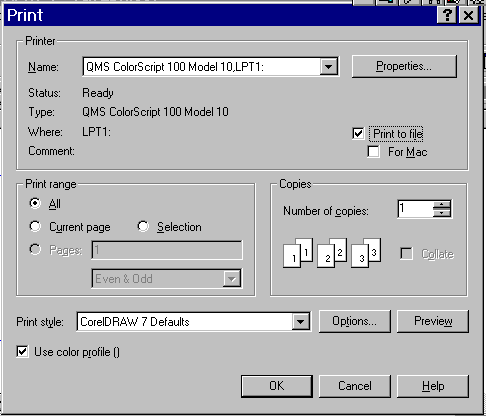
Make sure you are using a postscript printer driver, if not refer to loading the postscript driver instructions on page 3. Choose your postscript driver or the QMS ColorScript 100 Model 10 printer is chosen in the Name box. Click on Print To File so there is a check in the box next to the field. Click on the Options button in the lower right of the menu. The Options menu will open containing 3 tabs. Click on the Options tab. The screen shown below will open.
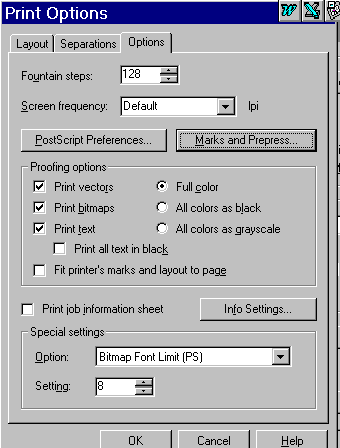
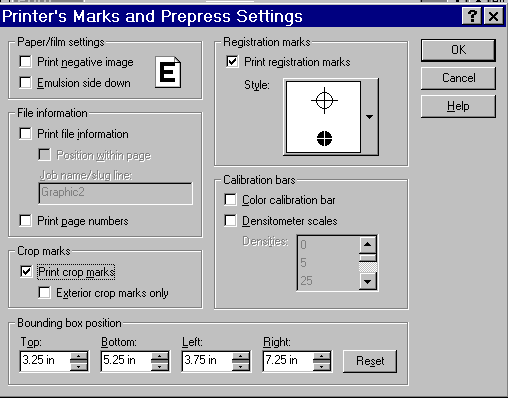
Click on the Marks and Prepress button. The following screen will open. Make sure there is a check in Print registration marks and Print crop marks as illustrated below. Click on OK to proceed.
Note: Do not choose color separations from the separations tab.
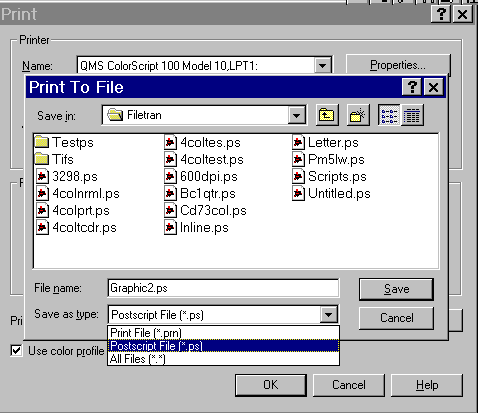
You are now back at the main print menu. Click on OK to name and save the file. Be sure to select Postscript File from the drop down list in the Save as type field. Name the file. Click on Save.
Transmit the file to BCT. When transmitting the file make sure you have included the color name you would like printed on your order as well as the color you chose from the CMYK palette. For example if your card was green and black indicate that you assigned K for black and C (Cyan) for the green ink portions of the card.
USER CHECK LIST
Check Points For Color Separations
- Create a color palette that contains the four CMYK Spot Colors - 100% tint.
- When assigning colors refer to the BCT Color Conversion Chart.
- Indicate in the file transmission which color codes have been assigned to the colors chosen for the file.
Color Imprint Use This CMYK Spot Color
Black or Gray Black
Process Blue , Green, Reflex Blue, or Teal Cyan
Red, Brown, or Burgundy Magenta
Gold, Silver, or Orange Yellow
Note: If you have conflicting colors such as Reflex Blue and Green then name the primary color according to the color conversion chart and name the secondary color any other color. Instruct your clients to identify each color they have chosen with the ink color and the code chosen.
Check Points For Printing To A Postscript File:
- File Menu - Print Option
- Select your postscript printer driver or the QMS Colorscript 100 Model 10 as printer
- Choose "Portrait" orientation for the document
- Paper Size choose "Letter"
- Graphics choose "Normal"
- Include "Printer’s Marks / Crop Marks"
- Write Postscript To File - select "Normal"
- Choose "Include Downloadable Fonts"
- Choose "Composite" not separations under color
- Assign file name
- Transmit file to BCT indicating the desired color choices and the CMYK colors chosen to represent the actual ink colors.
- Indicate Stock choice
- Indicate Quantity
- Indicate Finish, Thermography, Flat, Laser etc.
BACK
|