|
BACK

BASIC STEPS FOR FILE TRANSFER
"MAC USERS"
Customer:
Send test file to BCT
PostScript Printer driver installed
Create Art using CMYK Palette to assign colors
Print to File
Send file to BCT
PREPARING THE TEST FILE
1) Make sure the printer you are using is a postscript printer.
2) Create a 4 CMYK Spot Color postscript file using your current typesetting package by following the basic directions below. Keep in mind each program may differ slightly.
a) Create a 3.5 wide x 2.0 inch deep page layout. Set all 4 margins at 1/4 inch.
b) Draw a box in each corner of the layout.
c) Insert a line of text in the center of the layout. Use a script font if available.
d) Assign to each drawn box one of the 4 CMYK Spot Colors from the color palette. If your color palette does not contain CMYK Spot Colors refer to the user manual to create the colors in the palette.
e) Assign the color black (K) to the text.
f) In the Print Menu choose Write Postscript To File.
1) Select Normal. Do not choose EPS.
g) Choose Printer’s marks and/or Crop Marks
h) Include Download Fonts.
I) DO NOT SELECT COLOR SEPARATIONS. Leave selection at Composite.
j) Select Portrait as the orientation in the Print Menu.
k) Name the file.
3) Transmit the file to BCT making sure to identify the desired ink colors in the transmission file. For example, if CYAN was chosen to represent reflex blue indicate C = Reflex blue; M = Green etc.
CUSTOMER FUNCTIONS
1) Loading the Postscript Printer Driver (1 time):
If you are not using a postscript printer it is necessary to load a postscript printer driver for use in printing to a postscript file. To load the driver follow the directions below.
Click on the Apple Menu
Click on the Chooser option
Click on the Printer icon
Click on the setup button
Select the postscript PPD
2) Printing The Document
Preparing The Document For Print To File:
Instructions for some commonly used graphic programs will be provided. There are many other programs available and the user should be able to follow the basic instructions to accomplish the Print To File feature. This option is usually found in the File Menu, Print option of most programs.
The following instructions explain in detail which defaults to choose to create postscript files for transmission to BCT.
Example A) MAC - PageMaker
Click on the FILE Menu and click on NEW. The Page Setup menu will open. Choose the desired page size. For business cards first select Custom the dimensions of 3.5 x 2.0 Wide. The Margins would be entered at .25 for a quarter inch margin business card or .125 for an 1/8 inch margin card. Click on
the down arrow next to Target Printer Resolution and 600 dpi. Your screen should look like the graphic below.
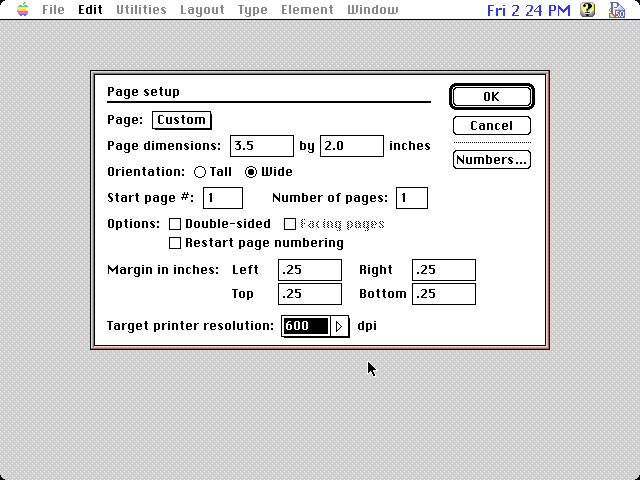
Click on OK to accept the defaults and the document will open showing a 1/4" margin business card. Create a Color Palette containing the 4 spot colors to be used in the order. The colors are Cyan, Magenta, Yellow, and Black.
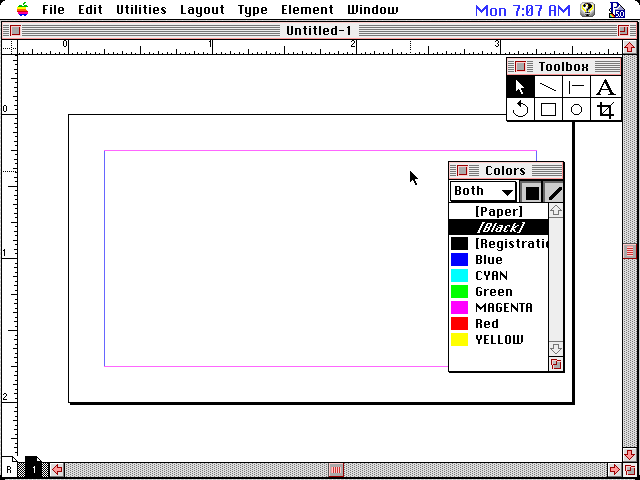
If your color palette does not contain the CMYK 100% Spot Colors create the palette from the Element menu Define Colors option as shown below.
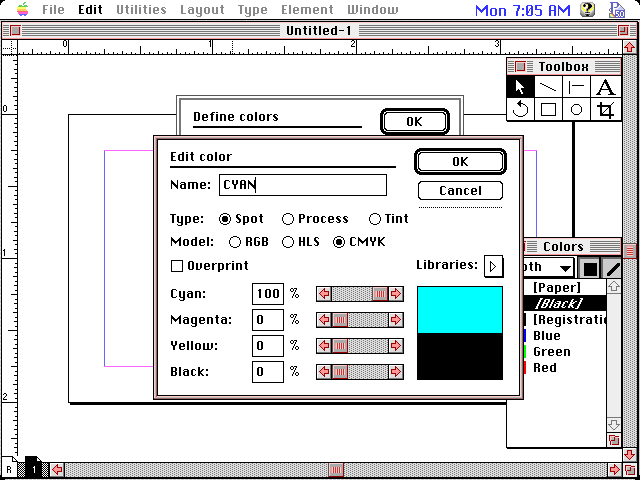
The colors are assigned by the user according to the BCT Color Conversion Chart shown below.
Color Imprint Use This CMYK Spot Color
Black or Gray Black
Process Blue , Green, Reflex Blue, or Teal Cyan
Red, Brown, or Burgundy Magenta
Gold, Silver, or Orange Yellow
Note: If you have conflicting colors such as Reflex Blue and Green then name the primary color according to the color conversion chart and name the secondary color any other color. Instruct your clients to identify each color they have chosen with the ink color and the code chosen.
The defaults for the Print To File are as follows:
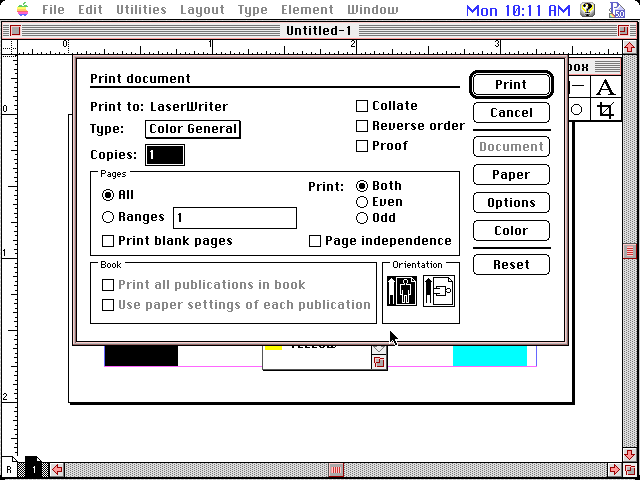
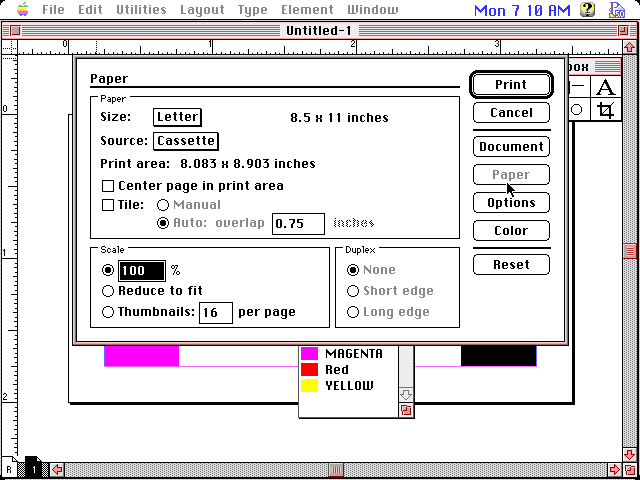
The main print screen opens showing the LaserWriter Printer as the printer with a Color General type. Make sure the Orientation is set at Portrait. click on the Paper button and a screen similar to the one below will open. Notice the Paper Size is set to Letter.
Click on the Options button. Your screen should look similar to the one below.
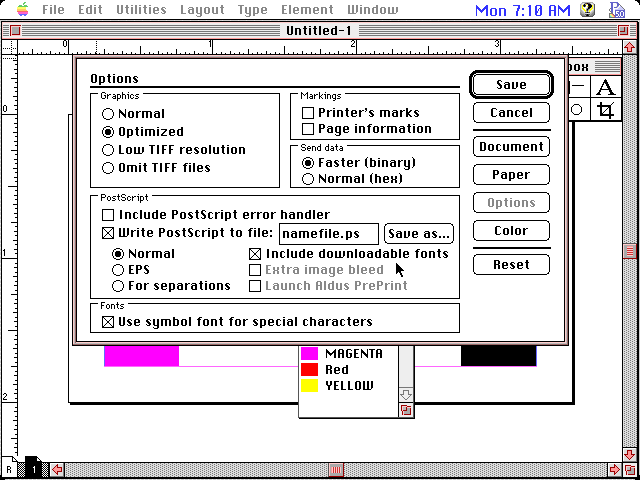
The Options button screen has the following defaults assigned to it. Graphics is Optimized; Send Data is Faster; Include downloadable fonts is Checked; Write Postscript To File is Checked; as well as Normal for the type of file. Type the
Name of the File.ps to select a name for the postscript file that will be transmitted to the BCT plant.
After naming the file, click on the COLOR button. The following screen will open.
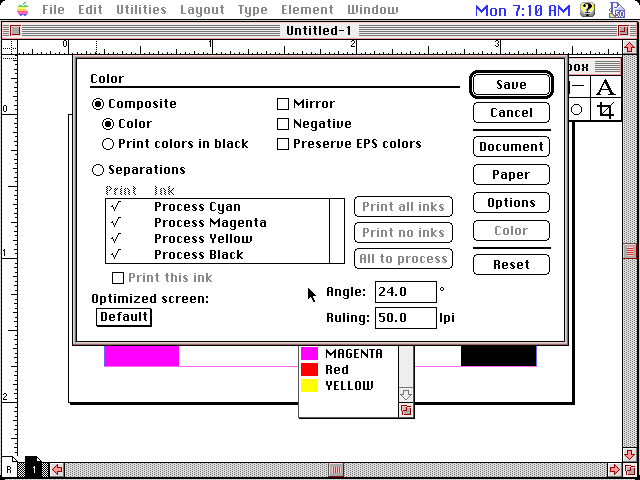
Notice Composite and Colors are selected. Do not click on Separations. Click on SAVE to save the file.
The user transmits the postscript file to the BCT plant.
USER CHECK LIST
Check Points For Color Separations
- Create a color palette that contains the four CMYK Spot Colors - 100% tint.
- When assigning colors refer to the BCT Color Conversion Chart.
- Indicate in the file transmission which color codes have been assigned to the colors chosen for the file.
Color Imprint Use This CMYK Spot Color
Black or Gray Black
Process Blue , Green, Reflex Blue, or Teal Cyan
Red, Brown, or Burgundy Magenta
Gold, Silver, or Orange Yellow
Note: If you have conflicting colors such as Reflex Blue and Green then name the primary color according to the color conversion chart and name the secondary color any other color. Instruct your clients to identify each color they have chosen with the ink color and the code chosen.
Check Points For Printing To A Postscript File:
- File Menu - Print Option
- Select your postscript printer driver or the LaserWriter as printer
- From the Print Menu choose "Portrait" orientation for the document
- Paper Size choose "Letter"
- Graphics choose "Optimized"
- Include "Printer’s Marks / Crop Marks"
- Write Postscript To File - select "Normal"
- Choose "Include Downloadable Fonts"
- Choose "Composite" not separations under color
- Assign file name
- Transmit file to BCT indicating the desired color choices and the CMYK colors chosen to represent the actual ink colors.
- Indicate Stock choice
- Indicate Quantity
- Indicate Finish, Thermography, Flat, Laser etc.
BACK
|